PRODUCT DESCRIPTION
Retro Docking Station for Mac mini M4 with 5-inch HD Monitor and 10Gbps M.2 NVMe PCIe SSD Enclosure
Tips and shipping:
- It is only compatible with the Mac mini M4/M4 Pro in terms of both functionality and size.
- It is also functionally compatible with the Mac mini M1/M2/M2 Pro, other Mac models and Windows computers with a Thunderbolt 5/4/3 or USB4 port, but NOT compatible in terms of size.
- It is NOT compatible with any computer that has a Thunderbolt 2 ports or USB 3.2/3.0/2.0 port in terms of neither functionality nor size.
Technical Specifications:
- Power Button: switch on/off of the 5-inch screen
- 5-inch Monitor: HD display, resolution up to 1280*720p, IPS
- M.2 SSD Slot: supports 2230/2242/2260/2280, NVMe, PCIe 4.0 and 5.0, capacity up to 8TB, speeds up to 10Gbps
- SD/micro Card Readers: SD4.0 UHS-ll 312MB/s, SD and microSD card readers can be used simultaneously
- 4x USB-A Ports: USB 3.2 Gen 2 10Gbps, power supply up to 5V/0.9Ah
- 1x USB-C Port: USB 3.2 Gen 2 10Gbps, power supply up to 5V/0.9Ah
- 1x USB-C Host: connect to Mac mini M4/M4 Pro
- 1x USB-C Port: connect to external power supply when needed, 15W (5V/3A)
- 1x Audio Port: 3.5mm earphone jack, USB 2.0, 8K-384K support 32bit input and output
- 1x HDMI Port: HDMi-in only
Accessories:
- 1x USB-C cable: connect to Mac mini M4/M4 Pro, 18mm, USB 3.2 Gen2 10Gbps
- 1x USB-C cable: connect to other Macs or Windows computers with Thunderbolt 5/4/3 ports or USB4 port, 1 meter, USB 3.2 Gen2 10Gbps
- 1x USB-C cable: connect to external power supply when needed, 1 meter, 15W (5V/3A)
Dimensions:
- 145*131*154mm, 5.71*5.16*2.13inches
Weights:
- 510g, 1.12Ibs, 17.99oz
Materials:
- Plastic (main body)
- Aluminum (SSD protective cover)
Compatibility:
- Mac mini M4/M4 Pro (both functionality and size are compatible)
- Mac mini M1/M2/M2 Pro (functionality is compatible, but size is not)
- Mac Studio M3 Ultra/M4 Max (functionality is compatible, but size is not)
- MacBook Air M4/M5, MacBook Pro M4/M4 Pro/M4 Max, MacBook Pro M5/M5 Pro/M5 Max (functionality is compatible, but size is not)
- Other Mac models and Windows computers with Thunderbolt 5/4/3 port or USB4 port (functionality is compatible, but size is not)
Wednesday, April 22, 2026
The coolest Mac Dock 2026
Thursday, August 31, 2023
Thursday, May 11, 2023
Very easy way to Insert A Header Row in Microsoft Excel for Mac
Here is a very easy way to Insert A Header Row
in Microsoft Excel for Mac - In office 365
Wednesday, April 5, 2023
Best Free Virus and Malware Removal Free Apps for the Mac
There are several free apps available for macOS that can help you get rid of malware.
Here are some of the best options..
https://www.malwarebytes.com/mac-download
#2 Avast Free Mac Security
https://www.avast.com/en-us/free-mac-security#mac
#3 Sophos Home
https://my.sophos.com/en-us/download/
#4 Bitdefender Virus Scanner
https://www.bitdefender.com/solutions/virus-scanner-for-mac.html
#5 AVG AntiVirus
It's important to note that while these apps can be effective at detecting and removing malware, they should not be considered a replacement for good online hygiene practices like avoiding suspicious websites, not clicking on suspicious links, and keeping your software and operating system up to date.
Tuesday, April 4, 2023
The Top and Best AI Tools for the Mac or IPhone
I will be updating and ranking this list weekly, Enjoy:)
Best Text to Images
#1 Midjourney
https://discord.com - Download App and sign up its free
https://midjourney.com/ - Sign Up Here for Midjourney
https://discord.com/invite/midjourney - Link MidJourney to Discord
Works on Mac and Iphone
#2
Adobe FireFly
https://firefly.adobe.com/generate/font-styles - Website sign up its free in beta
Works on Mac and Iphone
#3
Stable Diffusion
Click Here - Website sign up its free
#4
Stable Diffusion Clip drop
Click Here - Website sign up its free
Best AI Chat
#1
Chat GPT 4
https://openai.com/product/gpt-4 - Website sign up its free
Just type anything from
Works on Mac and Iphone
Best Text to Avatar Video
#1
Works on Mac and Windows
Best Texture Creater
#1
https://withpoly.com/browse/textures
Sell You Images after you create them and get paid
#1 Adobe Stock
#2 Wirestock
Monday, March 27, 2023
How to Improve Your IPhone Photo's Tip - Enable ProRAW on your iPhone Pro or iPhone Pro Max
On iPhone 12 Pro and later Pro models with iOS 14.3 or later, you can take photos in Apple ProRAW.
Apple ProRAW gives you more options and data when editing the exposure, color, and white balance in your photo. So more info is better for adjustments etc.
To enable ProRAW on your iPhone Pro or iPhone Pro Max, follow these steps:
Make sure your iPhone is running iOS 14.3 or later.
Step 1 - Open the Settings app on your iPhone and scroll down to "Camera".
Step 2 - Tap on "Formats" and then select "Apple ProRAW".
Step 3 - Exit the Settings app and open the Camera app.
Step 4 - Tap on the Pro mode in the camera app.
Step 5 - In Pro mode, you should see a new option to toggle on/off ProRAW at the top of the screen.
To take a ProRAW photo, tap RAW in the Camera app, then take your shot.
You can always increase your iCloud space and add that to your Apple Subscription if needed. upgrade your iCloud storage plan
Monday, March 6, 2023
How to reset the NVRAM or PRAM on an any Mac, including M1's and M2's
If you’ have a an M1 Mac, resetting the NVRAM or PRAM is as simple as restarting your computer as it happens automatically every time you restart.
Just shut down your M1 MacBook Pro, Macbook or Mac Mini , wait a few seconds, and then press the power button then turn it back on.
For older Macs like the Mac Pro 2013 Black Desktop or older non M1 Macbook and Macbook Pro Here is how to Reset the PRAM.
- Shut down your computer and disconnect all USB devices (except wired keyboards).
- Press the power button to turn on your Mac.
- Quickly press and hold the Option, Command, P, and R keys on your keyboard. You need to press this key combination before the gray screen appears or it won’t work.
I know its hard to press all 4 at once so here is a tip put your fingers on the keyboard to see the best way you can hit all 4 keys at the same time. I use my Left hand Pointer finger for option Thumb for command, I use my right hand and select with my Pinky the P and use my thumb for the R.
- Hold down all 4 keys for 10-20 seconds, then the Mac will restart.
On older Macs that chime on startup, hold down the keys until you hear a second chime.
For Macs with the Apple T2 Security Chip, hold the keys until the Apple logo appears and disappears a second time.
Here’s a list of Mac models with the T2 chip.
- Release the keys and let your Mac finish rebooting.
Be aware after your perfiorm the reset some of your user settings will get reset, here are a few, keyboard layout, mouse tracking, startup disk, date and time, and volume.
Once you restart check your System Preferences and adjust anything that was changed and thats all there is to it.
Friday, March 3, 2023
How to Activate your Onscreen Virtual Keyboard on a Mac and Login Screen
Friday, February 17, 2023
Nreal AR glasses are a cutting-edge piece of wearable technology that works on Macs and Iphones
Nreal AR glasses are a cutting-edge piece of wearable technology that brings augmented reality (AR) to everyday life. It works on Mac M1's and Higher in beta using thew free Mac App Nebula https://www.nreal.ai/nebula/, directly on IPad with USB-C, and on all HDMI and Iphones with an apple or HDMI adapter. It developed by the Chinese company Nreal, these glasses are lightweight and sleek, making them an ideal option for anyone looking to experience AR without the bulk and weight of traditional AR headsets.
Nreal is not a VR 3D glasses like Meta the AR which is not the same, Nreal AR glasses feature high-quality, translucent lenses that can display high-definition virtual images in real-world environments. The glasses have a 52-degree field of view and a resolution of 1080p, making for a seamless, high-fidelity AR experience. Additionally, the glasses are designed to be comfortable to wear for extended periods, with adjustable nose pads and earpieces.
One of the standout features of Nreal AR glasses is their ability to track the user's surroundings using six degrees of freedom (6DoF) tracking technology. This allows the glasses to accurately place virtual objects in the real world, so users can interact with them seamlessly. The glasses also have a built-in camera that can be used to capture photos and videos of the user's AR experiences.
Nreal AR glasses are powered by a Qualcomm Snapdragon 845 processor, which allows for fast and smooth processing of the AR content. The glasses are also compatible with a range of devices, including smartphones and PCs, thanks to their USB-C connectivity.
Nreal has developed a range of apps and games that are optimized for use with their AR glasses, including a virtual pet app, a chess game, and a virtual home decor app. The company is also working with a range of developers to create new AR experiences for the glasses, such as virtual try-ons for fashion and makeup products.
Nreal AR glasses are not only designed for personal use but also have applications in fields such as healthcare, education, and industry. In healthcare, for example, the glasses can be used to provide doctors with real-time patient information and surgical guidance. In education, they can be used to create immersive learning experiences that bring abstract concepts to life. And in industry, they can be used to provide workers with real-time information and instruction in manufacturing and logistics environments.
In conclusion, Nreal AR glasses are a game-changing piece of technology that brings AR to the masses. With their lightweight design, high-quality display, and 6DoF tracking, they provide users with a truly immersive AR experience. As the technology continues to develop, we can expect to see even more innovative uses for Nreal AR glasses in a range of industries and applications.
On a final note I found them most useful in practicing guitar using Ultimate Guitar Tabs on a USB-C Ipad and watching movies on a plane using and Iphone. When using them you need distant glasses which I found odd, so I bought prescription lenses that they make for them and they are awesome. My Favorite Tech this year.
Tuesday, February 22, 2022
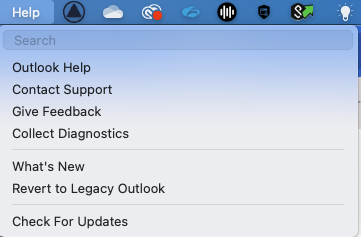
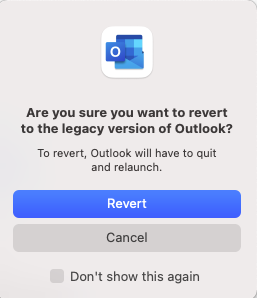
How to Go back to an older version of Microsoft outlook on a Mac 2022
If you just upgraded to version 16.xxx of Microsoft outlook on a Mac, you may need to revert back to the old one, here is how.
Sunday, August 1, 2021
How to attach Nord Speakers to the Keyboard
Finally if you want to also hook this all up to your Mac use the USB Cable that came with the Stage 3 and connect it to you your USB port on the Mac.
Sunday, April 18, 2021
Best Docking Station for Your MacBook Pro Laptop USB-C
IOGEAR USB-C Compact Docking Station with Power Delivery Pass-Thru - dockin
Tuesday, January 19, 2021
Where can I download the full Catalina Mac OS 10.15
Open the terminal in your utilities folder and run this command by pasting it in the terminal
softwareupdate --fetch-full-installer --full-installer-version 10.15.7
When completed you find the installer in your applications folder
Monday, November 2, 2020
How to send and receive your messages on all your Apple Devices - Iphone, Ipad and Mac and Sync them
How to get your Mac to show all your Iphone Texts
Text Message Forwarding, allows you to have all your text messages that you send and receive on your iPhone also appear on your Mac and iPad, and keep them in sync. Then you can continue the conversation from any device you want.
How to set up text message forwarding
- On your iPhone, iPad, go to Settings > Messages > Send & Receive. On your Mac, open Messages, choose Messages > Preferences, then click iMessage. Make sure that you're signed in to iMessage with the same Apple ID on all your devices.
- On your iPhone, select Settings > Messages > Text Message Forwarding.
- Choose which devices you want to send and receive text messages from your iPhone, a verification code appears on each of your other devices: enter that code on your iPhone.
- As long as your iPhone is turned on and connected to Wi-Fi or a cellular network, new SMS/MMS texts can be sent and received on the devices that you added.
iCloud now keeps your entire messages history updated and available on all your devices — even when you set up a new device.
Friday, October 9, 2020
Monday, October 5, 2020
How to completely remove Microsoft Teams from your Mac
1) Click Go > Go To Folder
2) Then paste each of the paths below one by one into the field and delete the files in that folder - repeat this process for each of the line items. IF nothing shows up in that folder move on to the next you will be doing this 11 times until all the teams files have been deleted.
~/Library/Application Support/Microsoft/Teams
~/Library/Application Support/Microsoft/Teams/Application Cache/Cache
~/Library/Application Support/Microsoft/Teams/blob_storage
~/Library/Application Support/Microsoft/Teams/Cache
~/Library/Application Support/Microsoft/Teams/databases
~/Library/Application Support/Microsoft/Teams/GPUCache
~/Library/Application Support/Microsoft/Teams/IndexedDB
~/Library/Application Support/Microsoft/Teams/Local Storage
~/Library/Application Support/Microsoft/Teams/tmp